How to Connect Apple CarPlay® & Android Auto™
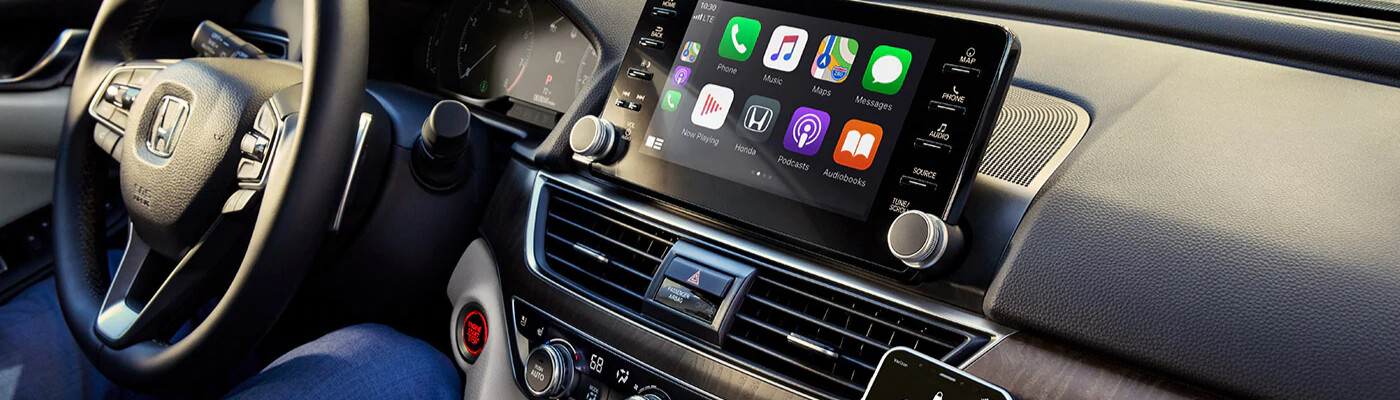
When customers in Dickson hop into their Nissan vehicle, they have the latest technology at their fingertips. Various convenience technologies such as Apple CarPlay® and Android Auto™ are some of the most popular among Dickson drivers. So, let’s learn how to connect Apple CarPlay® and how to use Android Auto™ in your Nissan vehicle with Victory Nissan of Dickson! If you have any questions about the technology in your vehicle, feel free to contact us anytime!
How to Connect Apple CarPlay®
Before learning how to connect Apple CarPlay®, it’s only compatible with iPhone 5 and above. So, if you have an iPhone 5 or higher, you’re ready to connect to CarPlay! First, navigate to the settings section, go to Siri and Search”, and enable Siri. Them it’s just as easy as following these simple steps:
- Find the USB port with the CarPlay logo, and connect your iPhone.
- Navigate to the “Settings” section, then “General”, “CarPlay”, and then choose your Nissan vehicle from the list of “Available Cars”.
- Press and hold the “Voice Control” button on the steering wheel, or the home button on your infotainment screen.
- You should now see Siri appear, and Apple CarPlay® is now ready to use on the Clarksville roads!
How to Use Android Auto™ Wireless
Before we learn how to use Android Auto™ wireless, you must first have either Android 5.0 or 6.0 installed for best performance. Let’s take a look at how to use Android Auto™ without USB:
- Navigate to your vehicle’s infotainment screen, and make sure you have the Android Auto™ app installed.
- Go to the Google Play Store and install the Android Auto™ app on your phone, or just plug your phone directly into the USB port.
- Open your phone.
- Read the safety and permissions.
- Enable Android Auto™ notifications.
- Choose Android Auto™, and now you can use your Android phone hands free on the Dickson roads.
Find Your Next Nissan Vehicle at Victory Nissan of Dickson!
Now that you know how to connect Apple CarPlay® and use Android Auto™ without USB, come check out our new vehicle inventory equipped with these technologies at Victory Nissan of Dickson! You can visit our finance center to start the buying process, and check out our new vehicle specials to save near Franklin!
More from Victory Nissan of Dickson
Author: Victory Nissan of Dickson Team If you’re a local driver in Dickson, TN, or nearby areas like Nashville, Franklin, and Columbia, the Nissan Kicks has likely caught your eye. This compact SUV stands out not just for its stylish design but also its impressive performance and advanced technology. At Victory Nissan of Dickson, our…
Read More
The 2027 Sentra maximizes value with every turn of the keys. The new model leverages its spacious cabin, available contemporary tech, and robust performance capabilities to provide everything from a car that consumers want. To learn more about the new Nissan Sentra, continue reading below. The 2027 Nissan Sentra at a Glance Performance With…
Read More
Author: Victory Nissan of Dickson Team If you’re a Nissan shopper in Dickson, TN, or nearby areas like Nashville, Franklin, or Columbia, the Nissan Pathfinder might just be the SUV you’ve been searching for. This comprehensive guide serves as your local resource, detailing the Pathfinder’s rich history, robust performance, stylish design, cutting-edge technology, advanced safety…
Read More